Every print-and-play designer knows the sinking feeling: you print a fresh prototype, cut out every card, sleeve them, sit down to play, and within three turns you spot a balance problem that means the whole batch is now scrap paper. Deck Builder lets you run that first round of playtesting on your phone, so you only print once the cards are actually worth printing. You still get the tactile, printed final version. You just skip wasting ink and card stock on the drafts.
Why playtest digitally first
Printing is the fun payoff of the hobby, but it is a poor way to catch early problems:
- Fast iteration. Change a number on a card and keep testing in seconds, instead of reprinting.
- No wasted materials. Ink, card stock, sleeves, and cutting time are expensive to throw away on a draft you already know is broken.
- A real shuffle and draw. Deck Builder uses realistic shuffling, so your test games play out with genuine randomness, not a stacked deck.
Step 1: Get your prototype into the app
Create a new deck, then add your cards one of three ways:
- Design your own cards directly in the app, which is ideal for a brand-new prototype.
- Import images of card faces you have already laid out in your design tool.
- Scan an existing paper prototype with your camera to bring it in as-is.
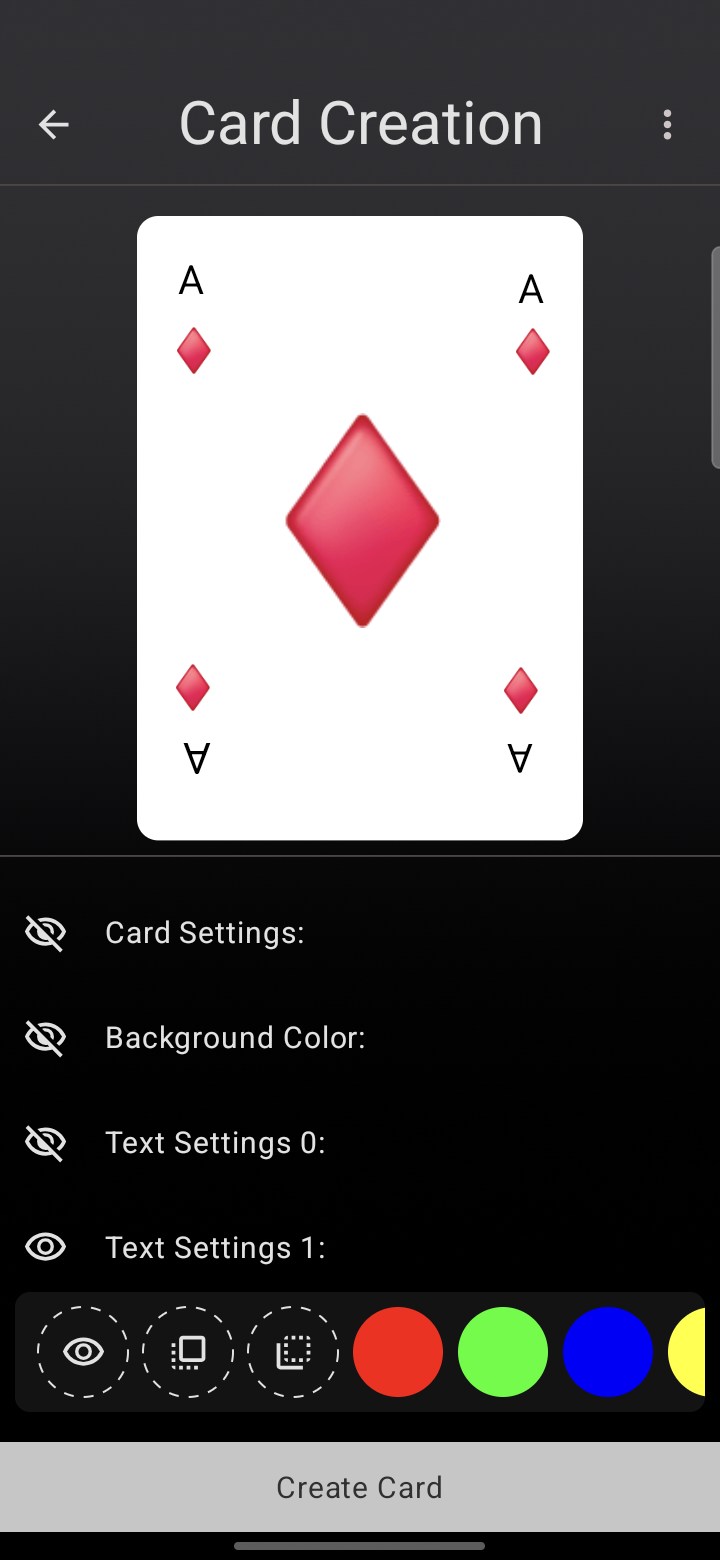
This means the deck in the app matches the exact cards you plan to print, art, text, and all.
Step 2: Run a real test game
- Start a simulation for the deck from the Simulate tab.
- Shuffle the deck so the order is truly randomized.
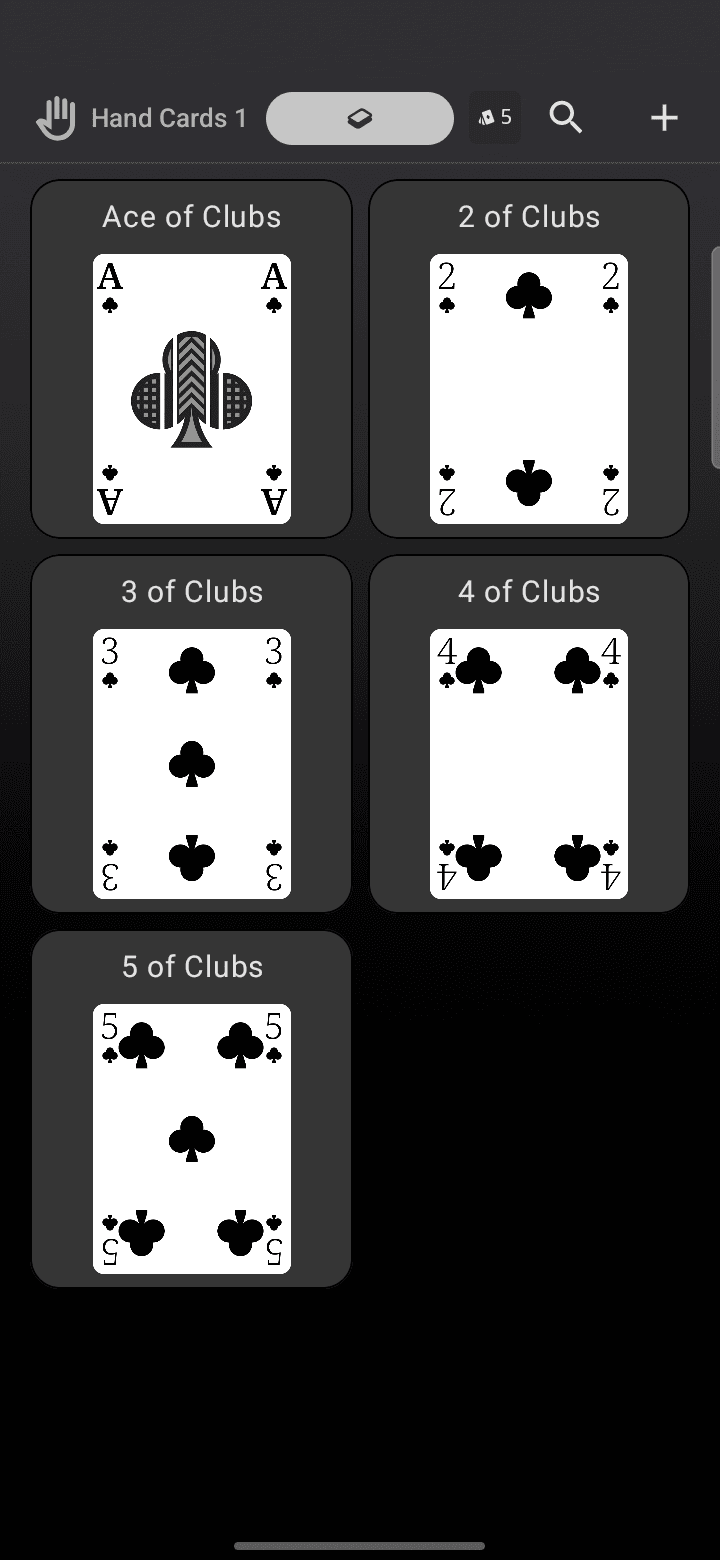
- Draw cards into your hand, move them into the in-play zone as you play them, and send used cards to the discard pile, exactly as the game would flow on the table.
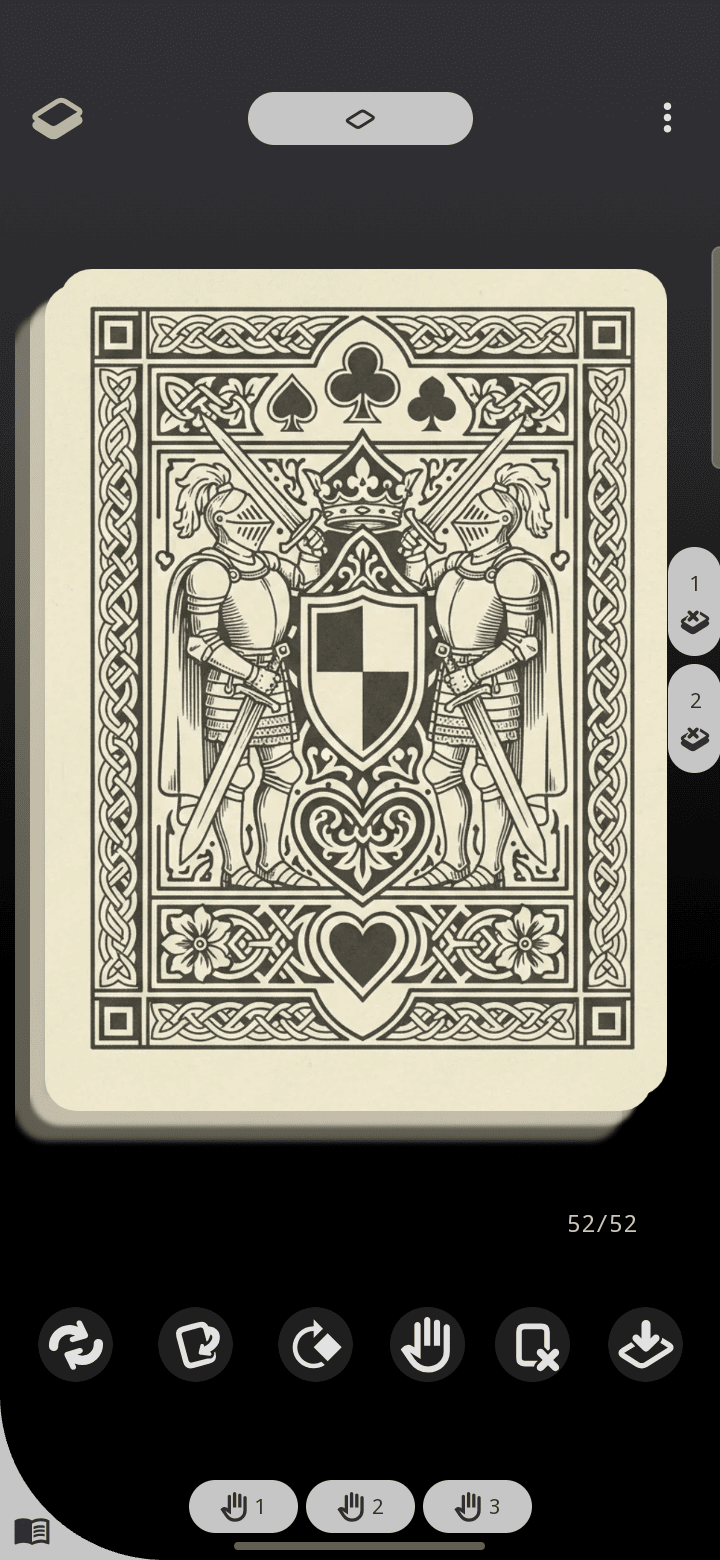
Flip the top card face up as you draw it, just like reaching for the next card off a real deck.
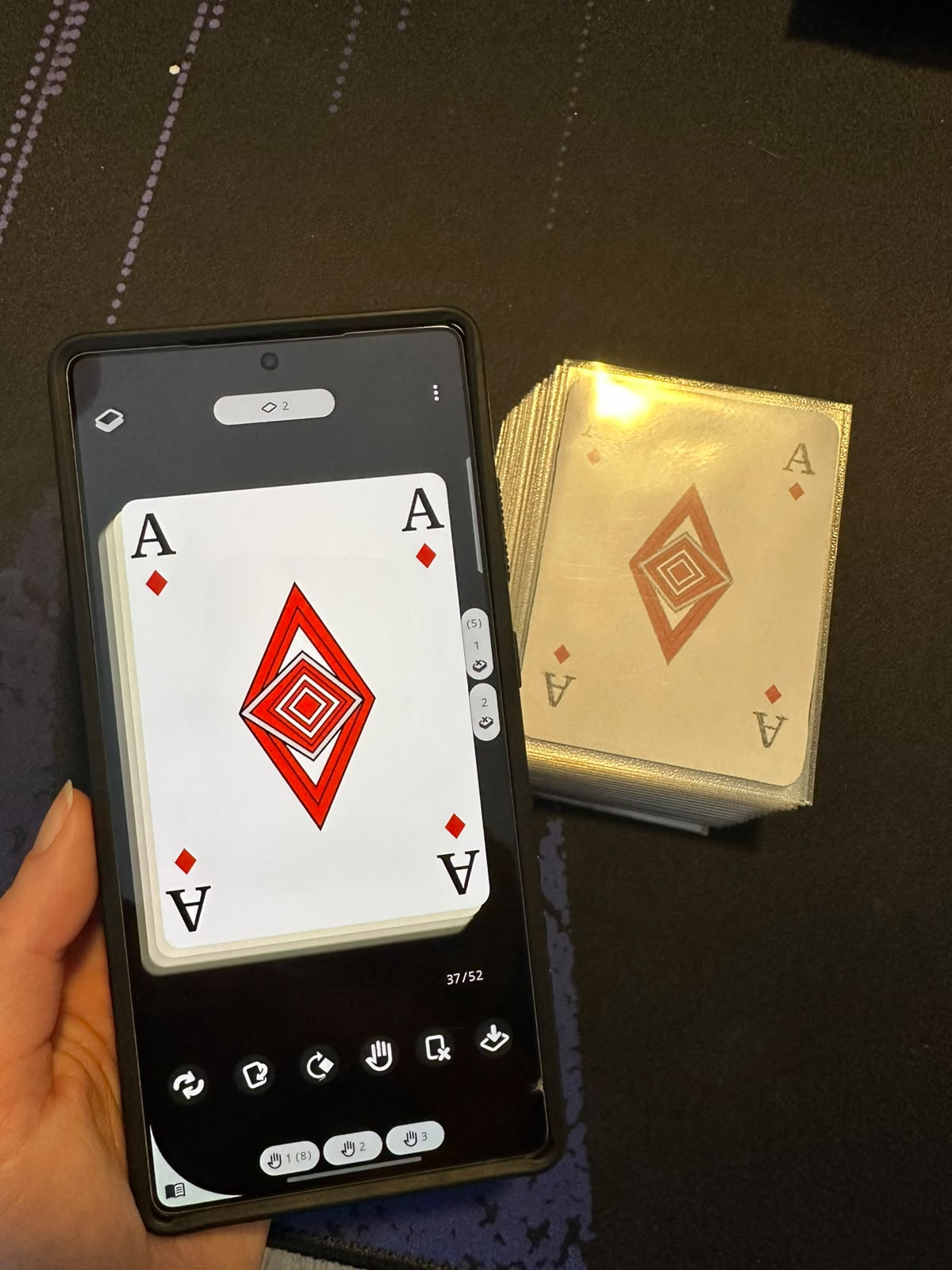
Because the draw pile, hand, in-play, and discard zones all behave like a physical game, you can feel how the deck actually plays: whether the curve is right, whether a card is too strong, whether you draw dead too often.
Step 3: Tweak, then test again
Spotted a problem? Edit the card in the app: change its cost, tweak the text, or swap the image for a new version. Then reshuffle and play another round. Repeat until the game feels right. This is the loop that used to cost you a printer cartridge every time, now it costs you nothing.
Export your cards to polish or print them
Deck Builder is the start of your pipeline, not a walled garden. Any card you design or import can be exported as a high-resolution PNG:
- Save to gallery writes the card image to your device, or Share as image sends it straight to Google Drive, email, or your computer.
- Open that PNG in a free desktop editor like Affinity (or Adobe) to refine the layout, then export it back out and bring it into Deck Builder with Import from Gallery.
- Those same PNGs are what you hand to a home printer or a print shop once the design is ready.
So you can rough a card out on your phone, polish it on a big screen, playtest it digitally, and print the final version, all from the same source art.
Step 4: Print the version that earned it
Once the deck holds up across several test games, you have a prototype worth committing to paper. The fastest way there is the deck menu’s Export as PDF: it lays your whole deck out as a print-ready grid of standard-size cards (63.5 x 88.9 mm) with cut guides, on A4 or Letter. Turn on double-sided and it adds a mirrored backs page so long-edge duplex printing lines up. Print it, cut along the guides, sleeve it, and enjoy the part of the hobby that a screen cannot replace, knowing the design underneath is already solid.
A few tips for cleaner testing
- Split the deck into starting hands or encounter piles to set up a scenario quickly (see “How do I split a deck into smaller piles in Deck Builder?”).
- Use tags to mark card types or factions so you can spot patterns while you test.
- Everything works offline and stays on your device, so you can playtest on a train, at a table, or on the couch, with nothing shared unless you choose to.
- Want a deck to practice the flow first? Grab the free CC0 poker deck (install it from the in-app store, or import its print-ready image bundle) and try the shuffle-draw-discard loop before you digitize your own prototype: Free CC0 poker deck.
Deck Builder does not replace the printed game you love. It just makes sure the game is worth printing before you spend the ink.
