Got a stack of physical Magic: The Gathering cards and no time to type out every name? Deck Builder can scan a card with your camera and use on-device text recognition to find its exact printing on Scryfall, so you can add it to your deck in seconds. Here is how.
Open the scanner
Open a deck and tap the + button in the bottom right, then choose Add Magic Card.
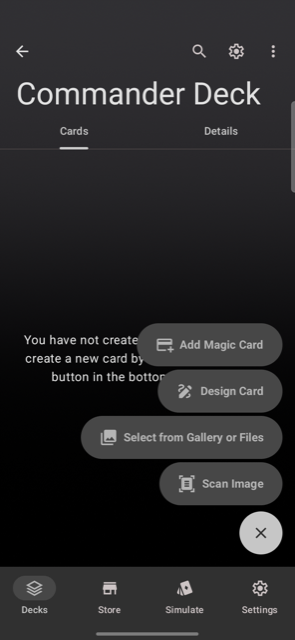
This opens the Magic Card Search screen. Open the ⋮ menu there and choose Scan card.
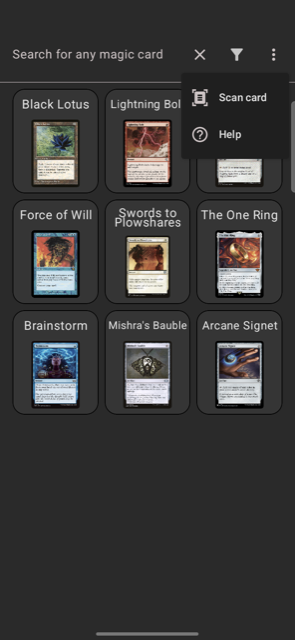
Photograph the card
Grant camera access if prompted, then position the card in the frame. The scanner detects the card’s edges and captures it automatically, or you can switch to manual capture. It does not need to be a perfect shot, a bit of glare or a slight angle is fine as long as the text stays readable. Confirm the captured photo to continue.
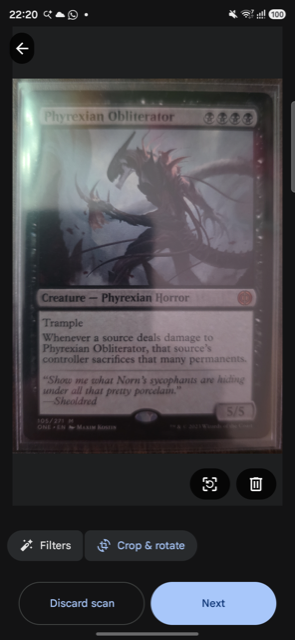
Deck Builder reads the card name and the tiny collector bar text at the bottom of the card (set code, collector number, and language) directly from the photo, no typing required. A Scan card sheet then opens with those fields pre-filled: Search by name to browse every printing that matches, or Exact lookup to jump straight to that one specific printing.
Confirm the match
Tap whichever button fits, then tap the matching result: Deck Builder pulls in the real card image and text from Scryfall.
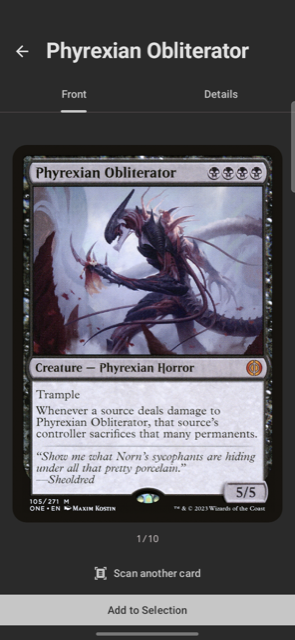
Add it to your deck, then tap Scan another card to keep going without leaving the flow.
Tip: foil and worn cards
Reflections on foil cards or wear on the collector bar can make text harder to read. If a scan comes back with the wrong name or set code, just edit the pre-filled field before searching, or retake the photo with the card flat and evenly lit.
