When a game gets going, your hand, discard pile, and in-play area can fill up with dozens of cards. Deck Builder lets you search any of those zones during a simulation so you can jump straight to the card you need. Here is how.
Search your hand, discard pile, or in-play area
- Start a simulation for your deck (or deck collection) from the Simulate tab.
- Open the zone you want to search: tap the hand, discard pile, or in-play area.
- Make sure the zone is in list view (the searchable layout).
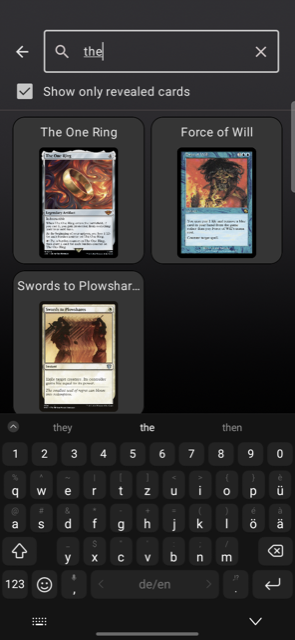
- Tap the search icon at the top of the list.
- Start typing a card name. The list filters as you type, so the matching card appears immediately.
Clear the search box to return to the full list.
Why search instead of scroll?
For big decks (think Magic: The Gathering, a loaded discard pile, or a wide board state), scrolling to find one card wastes time. Searching by name keeps the game moving and helps you make plays faster.
Tip: enable search per zone
Card search is controlled by a per-zone deck setting, so you can turn it on exactly where you want it. Open your deck’s settings, find the hand, discard, or in-play section, and enable searching for that zone.
